Set up, configure, and troubleshoot your AI-powered Jira issue classifier.
Last updated: May 12, 2026
1. Overview
Auto-Triage AI is an Atlassian Forge app that automatically classifies new Jira issues as they are created. It reads the issue summary and description, runs them through a Large Language Model (LLM), and sets the priority, component, and labels — instantly and consistently.
How It Works
A new issue is created in Jira (or a customer request comes in via Jira Service Management)
Auto-Triage AI receives the issue creation event via Forge trigger
It fetches the issue summary and description
The text is sanitized (HTML/script stripped, PII scrubbed, truncated to 1,000 characters)
A system prompt is constructed with your rules, project context, and allowed values
The prompt is sent to the configured LLM endpoint
The LLM returns a JSON object with priority, component, labels, and confidence score
If confidence is above the threshold, the issue is updated automatically
A private comment is added to the issue summarizing what was updated (ticket ID, link, changed fields, confidence score)
If confidence is below the threshold, the issue is tagged needs-manual-review with a detailed prediction comment
Key Features
Zero-config SprintLoom LLM: Use our hosted inference — no setup needed
Bring Your Own LLM: Connect any OpenAI-compatible endpoint (Ollama, OpenAI, LiteLLM, etc.)
5 models to choose from on SprintLoom (Premium feature)
Label mappings: Map AI output values to your Jira labels
Confidence threshold: Flag low-confidence classifications instead of applying them
Do Not Overwrite: Respect human-set values
Project context: Inject team-specific rules into the AI prompt
5 layers of prompt injection defense
Dry Run mode: Test without touching real issues
2. Installation
Install from Marketplace: Go to Apps → Find new apps in Jira, search for "Auto-Triage AI", and install.
Open the app: Navigate to Apps → Auto-Triage AI in the Jira top navigation bar.
Choose your LLM: Either enable SprintLoom hosted LLM or configure your own endpoint.
Test the connection: Click Test Connection to verify everything works.
Save: Click Save to store your settings.
Enable triage: Go to the Behavior tab and ensure Enable Auto-Triage is checked.
Auto-Triage will start processing new issues immediately after saving. Existing issues are not affected.
Requirements
Jira Cloud (Software or Service Management)
For BYO LLM: An HTTPS LLM endpoint (Ollama behind a tunnel, OpenAI API, LiteLLM, etc.)
Jira admin or project admin privileges to configure the app
3. Connection Settings
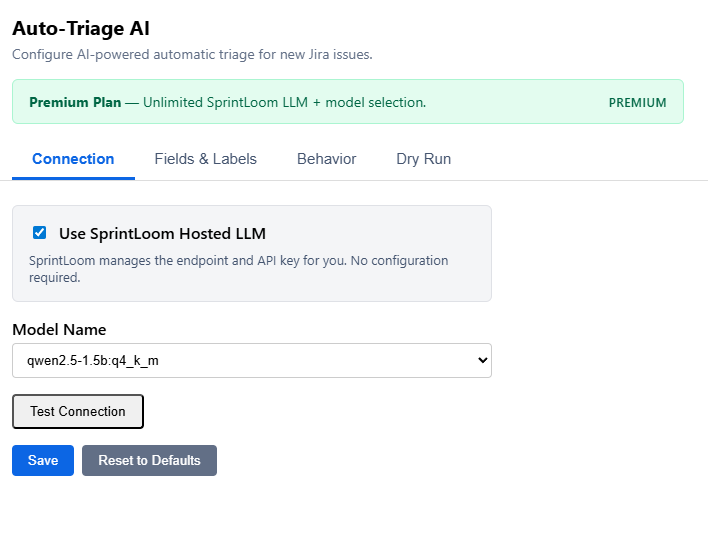
The Connection tab is where you configure which LLM Auto-Triage uses to classify issues. You have two options: use the managed SprintLoom hosted LLM, or connect your own endpoint.
Connection Settings — Use SprintLoom hosted LLM (left) or configure your own endpoint (right)
3.1 Using SprintLoom Hosted LLM
If you have an active Free trial or Premium license, check Use SprintLoom Hosted LLM. The endpoint and API key are managed for you — no manual configuration needed.
SprintLoom hosted LLM requires an active trial or Premium plan. Free-tier users (BYO LLM) do not have access to the hosted endpoint.
3.2 Bring Your Own LLM
Uncheck the SprintLoom option and fill in:
Field
Description
LLM Endpoint URL
HTTPS URL of your LLM API. Must start with https://. Works with Ollama, OpenAI, LiteLLM, or any OpenAI-compatible API.
API Key / Auth Credentials
Bearer token or API key for your LLM endpoint. Stored encrypted in Forge storage.
Model Name
The model to use (e.g. gpt-4o-mini, qwen2.5:0.5b). The default is the free option on SprintLoom; you can change this to any model your endpoint supports.
https://your-ollama-server.com/v1/chat/completions — Ollama with OpenAI-compatible mode
3.3 Testing the Connection
Click Test Connection to verify that your LLM endpoint is reachable and responding correctly. The app sends a brief prompt and checks for a valid JSON response. A green indicator means successful; red means the endpoint is unreachable or returned an error.
3.4 Available Models
When using SprintLoom hosted LLM with a Premium license, you can select from:
Model
Size
Speed
Best For
qwen2.5:0.5bDefault
397 MB
~25 tok/s
Fastest option. Good for most teams.
llama-3.2:1b-iq4xs
743 MB
~13 tok/s
Best quality/speed balance. Meta's latest small model.
qwen2.5-1.5b:q4_k_mNew
1.1 GB
~13 tok/s
Larger model for complex classifications.
deepseek-r1:iq4xs
973 MB
~11 tok/s
Reasoning-focused model. More verbose chain-of-thought.
glm-edge:q4ks
894 MB
~13 tok/s
GLM architecture. English and Chinese support.
4. Fields & Labels
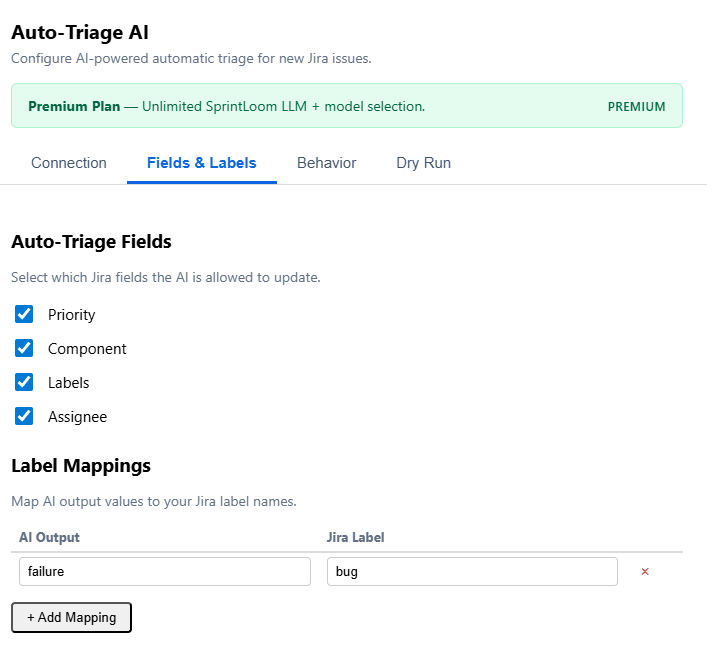
Control which Jira fields the AI is allowed to update and how labels are mapped.
Set issue priority (Highest / High / Medium / Low / Lowest)
Component
Off
Assign to a component. Only set when the description explicitly names a component.
Labels
On
Add 1-3 short labels describing the issue type, area, or severity.
Assignee
Off
Always null — the AI never assigns issues to individuals.
Note: The Assignee field is always set to null regardless of this toggle. This is a deliberate security measure — the app never guesses names or assigns issues to users.
4.2 Label Mappings
Label mappings let you translate AI output values into your Jira labels. For example, if the AI outputs bug but your Jira uses type-defect, you can map them.
AI Output
Jira Label
bug
type-defect
login
area-authentication
ui
frontend
To add a mapping:
Click + Add Mapping
Type the AI output value (what the LLM might produce)
Type the corresponding Jira label name
Repeat for all desired mappings
Labels output by the AI that have no mapping are applied as-is to the Jira issue.
5. Behavior Settings
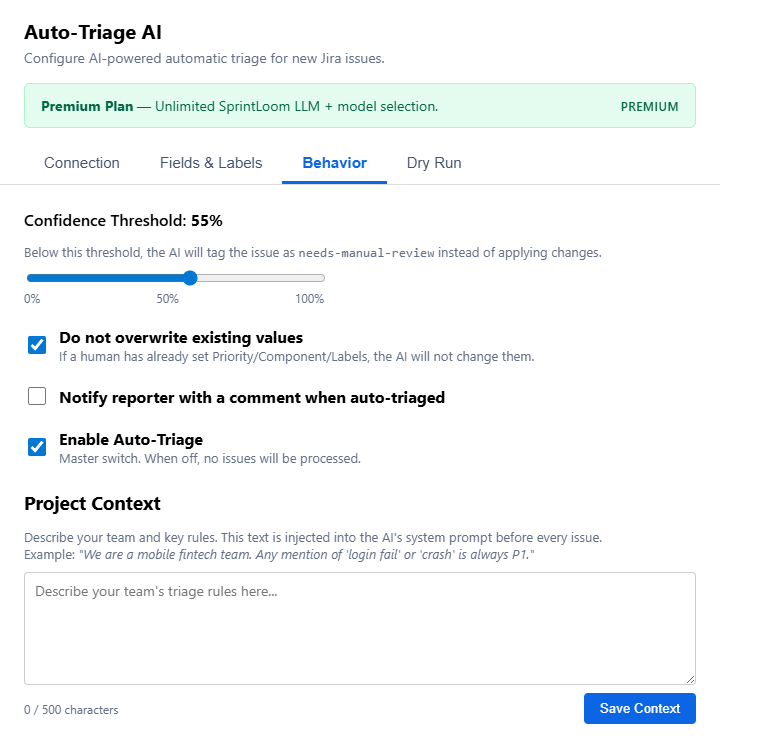
Configure how the AI behaves when processing issues.
The confidence threshold controls how certain the AI must be before applying changes. Values range from 0% to 100%.
High threshold (e.g., 80-90%): The AI only applies classifications it's very sure about. More issues will be tagged needs-manual-review.
Low threshold (e.g., 50-60%): Almost all issues get classified automatically. Some may be incorrect.
Default: 70% — a good balance between automation and accuracy.
When confidence is below the threshold, the AI adds the label needs-manual-review instead of applying the classification.
5.2 Do Not Overwrite Existing Values
When enabled (default), the AI will not change fields that a human has already set. For example, if a team member manually set an issue to "Highest" priority, the AI will leave it alone.
5.3 Notify Reporter
When enabled, the AI adds an @mention comment on the issue after triage, notifying the reporter that their issue has been classified.
5.4 Enable / Disable Auto-Triage
The master switch. When turned off, no issues are processed. Use this during maintenance or if you need to temporarily disable the app.
5.5 Project Context
Project context lets you inject team-specific rules directly into the AI's system prompt. Use it to describe:
Your team's focus area (e.g., "We are a mobile fintech team")
Priority rules (e.g., "Any mention of 'login fail' or 'crash' is always P1")
Label conventions (e.g., "We use labels like area-auth, area-payments")
Component definitions (e.g., "The 'Login' component covers SSO, OAuth, and password reset")
Example:"We are a mobile fintech team. Any mention of 'login fail' or 'crash' is always P1. We use the Payment component for anything transaction-related."
The context is capped at 500 characters. Placeholder is saved independently with a dedicated Save button.
6. Dry Run
The Dry Run tab lets you test how the AI would classify a sample issue — without changing any real Jira data.
How to Use
Go to the Dry Run tab
Paste a sample issue description into the text area
Click Simulate Triage
Review the predicted result:
The result shows what the AI would set for:
Priority — The predicted priority level
Component — The predicted component (or — if none)
Labels — The predicted labels
Assignee — Always — (AI never assigns)
Confidence — How certain the AI is about this classification
Use the Dry Run to fine-tune your project context and confidence threshold before enabling the app.
7. Understanding the AI Output
The AI returns a JSON object with these fields:
Key
Type
Description
priority
string
One of: Highest, High, Medium, Low, Lowest
component
string or null
A component name, or null if none clearly applies
labels
array of strings
1-3 short descriptive labels, or empty array
assignee
null
Always null — never assigned
confidence
number 0.0–1.0
Overall certainty of the entire classification
Priority Rules
Priority
When the AI assigns it
Highest
Total outage, data loss, security breach
High
Core feature broken, many users affected
Medium
Bug with workaround, moderate impact
Low
Minor defect, edge case, few users
Lowest
Cosmetic, text change, trivial task
Component Assignment
The AI only assigns a component when:
The description explicitly names a broken component (e.g., "the login component is broken")
The project context clearly maps the issue to a component
The AI is highly confident which component is affected
Otherwise, component is set to null.
8. Troubleshooting
⚠ Issues are not being triaged
Possible causes:
The issue has no Description field — Auto-Triage requires a description to analyze the issue. Issues with only a summary are skipped.
Auto-Triage is disabled — check Behavior → Enable Auto-Triage
The connection test fails — go to Connection and verify your LLM endpoint is reachable
The event trigger is not firing — the app only processes newly created issues, not existing ones
A project-specific workflow validator is blocking field updates — check your project's workflow configuration
Fix: Check the issue for a private comment — the app leaves one explaining why the issue was skipped (missing description, LLM error, etc.). Run a Dry Run test first to isolate whether the issue is with the LLM connection or Jira permissions.
⚠ Connection test fails
Possible causes:
The endpoint URL does not use https:// — the app only accepts HTTPS
The API key is incorrect or missing
The model name is misspelled or not available on your LLM server
The endpoint is behind a firewall that blocks Forge's IP range
The endpoint's SSL certificate is expired or self-signed
Fix: Verify the URL works from your browser or curl. Ensure the endpoint supports the OpenAI chat completions format. Check that your API key has not expired.
⚠ Triage is taking too long (times out)
Possible causes:
The LLM model is too large for your VPS — smaller models (0.5B–1.5B) are recommended
The LLM server is overloaded — Forge functions timeout at 25 seconds
The network latency between Forge and your LLM endpoint is high
Fix: Use a smaller model. If using SprintLoom, try qwen2.5:0.5b — it's the fastest option (~3-4s total). If using your own Ollama server, consider upgrading hardware or using a smaller quantization.
⚠ Settings keep resetting or not saving
Possible causes:
Forge storage quota reached
Network issue during save
Fix: Try resetting settings using the Reset to Defaults button and re-entering your configuration. If the issue persists, use the webtrigger reset URL with your secret parameter.
⚠ Label mappings are not being applied
Possible causes:
The AI output value does not match any mapping key
The Jira label name in the mapping does not exist in your Jira instance
Label toggles are off in the Fields & Labels tab
Fix: Run a Dry Run to see what labels the AI produces. Then add corresponding mappings. Verify your Jira labels exist in Jira Settings → Issues → Labels.
⚠ AI returns unexpected or invalid values
Possible causes:
The LLM is not following the JSON schema correctly — try a different model
Prompt injection — the issue description contains instructions that confuse the LLM
Project context is misleading or too vague
Fix: Use a more reliable model like qwen2.5:0.5b or llama-3.2:1b-iq4xs. Improve your project context with clearer rules. The app's built-in validation will reject invalid JSON and strip unknown keys.
⚠ How to reset everything
If you need to start fresh:
Click Reset to Defaults in the Connection tab — this clears all settings and restores factory defaults
Or use the webtrigger: https://[app-id].hello.atlassian-dev.net/x1/[webtrigger-id]?secret=reset-auto-triage-2026
Re-enter your LLM endpoint URL, API key, and settings
9. FAQ
Does the app process existing issues?
No. Only issues created after the app is installed and enabled are processed. There is no bulk backfill of existing issues.
What data is sent to the LLM?
The issue summary and description (truncated to 1,000 characters) are sent. No attachments, comments, or user data are included. Your configured project context is also sent as part of the system prompt.
Is my data used for AI training?
No. Neither SprintLoom nor our upstream LLM providers use your data for training or fine-tuning models. Data is processed in-memory and discarded immediately after inference.
Can the AI assign issues to people?
No. The assignee field is always set to null regardless of configuration. This is a deliberate security measure — the app never assigns issues to individuals.
What happens when the AI is not confident?
If the confidence score is below the configured threshold (default 70%), the AI adds the needs-manual-review label instead of changing priority/component/labels. This allows a human to triage it later.
Does it work with Jira Service Management?
Yes. The trigger fires for all issue types including JSM customer requests. Priority, component, and labels are standard Jira fields available in JSM project types.
Can I use my own OpenAI key?
Yes. Uncheck "Use SprintLoom Hosted LLM" and enter your OpenAI endpoint URL and API key. The app works with any OpenAI-compatible API including OpenAI, Azure OpenAI, Ollama, and LiteLLM.
What LLM endpoint format does the app use?
The app sends requests in the OpenAI chat completions format (/v1/chat/completions). If your endpoint is not at the default path, append the full path in the URL.
How do I get support?
Email [email protected]. Premium customers get priority support with < 24h response time on business days.